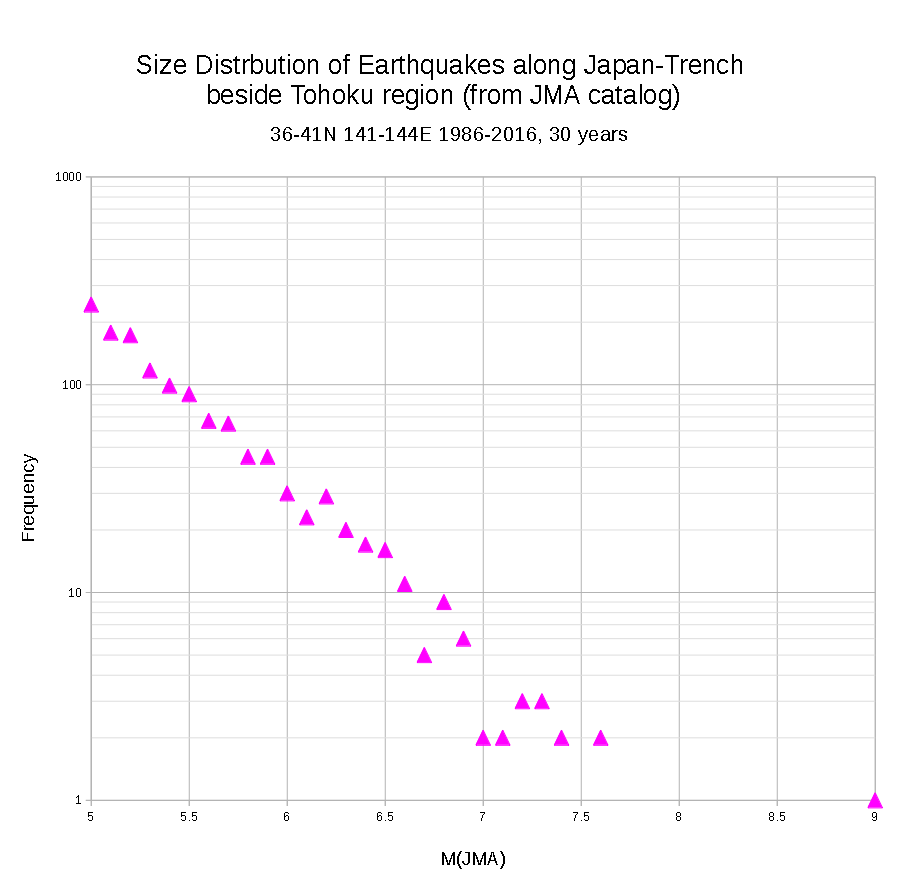
Making Procedure of a size distribution plot of earthquakes from JMA seismicity catalog by Yoshio Okamoto 27th 2019
Data: http://www.data.jma.go.jp/svd/eqev/data/bulletin/hypo.html (It seems to be in Japanese only now.)
1. Combine the data from annual to a period.
cat h1986 h1987 ----- h2015 h2016 > H1986-2016
2. Convert the data format JMA to GMT style
#!/bin/sh
# Data conversion JMA to GMT format
# by Yoshio Okamoto 16/July 2013, 27/February 2019
tr ' ' '_' <H1986-2016> tp1.txt
awk 'substr($0,1,1) == "J"' tp1.txt > tp2.txt
awk '{print substr($0,2,16),substr($0,23,6),substr($0,34,7),substr($0,45,5),substr($0,53,2)}' tp2.txt > tp3.txt
awk 'substr($5,1,1) != "-" && substr($5,1,1) != "_" &&
substr($5,1,1) != "A" && substr($5,1,1) != "B" &&
substr($5,1,1) != "C"' tp3.txt > tp4.txt
tr '_' '0' < tp4.txt> tp5.txt
awk '{print substr($0,1,16),substr($2,1,2) "."
substr(substr($2,3,4)/6000,3,4),substr($3,1,3) "."
substr(substr($3,4,4)/6000,3,4),substr($4,1,5)/100,substr($5,1,2)/10}'
tp5.txt > tp55.txt
tr ' ' ',' < tp55.txt> tp6.txt
awk '{print $3" " $2" "$4" "$5 > "JMA1986-2016.dat" }' tp55.txt
rm *.txt
#sort -k 3 -n -r JMA986-2016.dat > JMA1986-2016_ds.dat ## sorting by depth, if it needs.
"JMA1986-2016.dat" is a final one.
3. Pick up the region
#!/bin/sh
# Pick up a area from JMA GMT format data
# by Y.Okamoto 07/Aug 2013, 27th Feb 2019
# Pick up Area = W/E/S/N or GMT -R
W=141
E=144
S=36
N=41
# picking up by area
awk "{ if ((\$1 >= $W) && (\$1 < $E) && (\$2 >=
$S) && (\$2 < $N)) { print \$1,\$2,\$3,\$4 }}"
"JMA1986-2016.dat" > Sanriku1986-2016.dat
4. Making Size(M)-Frequency distribution
# count.awk modified 27th Feb 2019 by Yoshio Okamoto
# awk -f JMA_M_count.awk Sanriku1986-2016.dat > Sanriku1986-2016_GR.dat
#main
{
v = $4*10
count[int(v)]++
}
END {
for (v in count) {
print (v/10), count[int(v)]
}
}
5. Use "Excel" or "Calc" to make a scatter plot.
G-R則データ処理備忘録. 2025.11-23
https://earthquake.usgs.gov/earthquakes/search/
よりデータダウンロード.それぞれ2000-2019だと20000の限界を越えるので,いくつかの時間に分けて統合.
されにそれを
grep -v '^time,latitude,longitude' temp.csv > ANSS2000-2019.csv
のように,ヘッダ除去の上,元データとする.これをCGPT作のM_count.shでM別カウント.
DATA_FILE="US_ANSS2000-2019.csv" # ここをあなたのファイル名に置き換えてください
echo "## マグニチュード 0.1 刻みの度数分布表" > G-R2000-2019v2.dat
echo "---" >> G-R.data
echo "マグニチュード_M,度数_n" >> G-R2000-2019v2.data
echo "---" >> G-R.data
# awkで集計し、結果をsortでソートして追記
awk -F',' '
{
# 5列目 (マグニチュード) がヘッダー "mag" または数値でない場合はスキップ
if ($5 == "mag" || $5 ~ /[^0-9.]/) {
next
}
# マグニチュードを 0.1 刻みで切り捨て (例: 5.19 -> 5.1)
M_floor = int($5 * 10) / 10
# 度数をカウント
M_COUNT[M_floor]++
}
END {
# ソートされていない順で出力し、外部の sort コマンドに任せる
for (M in M_COUNT) {
print M "," M_COUNT[M]
}
}' "$DATA_FILE" | sort -n -t',' -k1,1 >> G-R2000-2019v2.dat
これでOK.
SEAsia,Japan, USを作成.
それぞれ,範囲は85-130,0-30
125-150,25-50
-130 -100,25-45
さらに,この地図範囲を描画するHTMLをCGPTで作成.
<!doctype html>
<html lang="ja">
<head>
<meta charset="utf-8" />
<title>世界地図に矩形を描く(Leaflet) - 複数矩形対応</title>
<meta name="viewport" content="width=device-width, initial-scale=1.0">
<link rel="stylesheet" href="https://cdnjs.cloudflare.com/ajax/libs/leaflet/1.9.4/leaflet.css">
<style>
html,body,#map { height: 100%; margin: 0; padding: 0; }
.controls { position: absolute; top: 8px; left: 8px; z-index: 1000; background: rgba(255,255,255,0.95); padding:8px; border-radius:6px; font-size:13px; box-shadow: 0 1px 6px rgba(0,0,0,0.2)}
.controls input { width: 110px }
.controls .row { margin-bottom:6px }
.legend { position: absolute; bottom: 8px; left: 8px; z-index:1000; background: rgba(255,255,255,0.9); padding:6px; border-radius:6px; font-size:12px }
.btn { padding:6px 8px; margin-left:6px }
</style>
</head>
<body>
<div id="map"></div>
<div class="controls">
<div class="row">北 (N): <input id="inpN" value="45"></div>
<div class="row">南 (S): <input id="inpS" value="10"></div>
<div class="row">西 (W): <input id="inpW" value="120"></div>
<div class="row">東 (E): <input id="inpE" value="150"></div>
<div style="margin-top:6px;text-align:right">
<button id="drawBtn">描画</button>
<button id="clearBtn" class="btn">全削除</button>
<button id="toggleMarkers" class="btn">マーカー表示: ON</button>
</div>
<div style="margin-top:6px;font-size:11px;color:#333">座標は度(十進)で入力してください。西経/南緯は負の値。複数矩形は色が順に変わります。</div>
</div>
<div class="legend" id="legend">矩形数: 0</div>
<script src="https://cdnjs.cloudflare.com/ajax/libs/leaflet/1.9.4/leaflet.js"></script>
<script>
const map = L.map('map').setView([30, 135], 3);
L.tileLayer('https://{s}.tile.openstreetmap.org/{z}/{x}/{y}.png', { maxZoom: 19, attribution: '© OpenStreetMap contributors' }).addTo(map);
const colors = ['#ff0000','#0000ff','#00aa00','#ffaa00','#aa00ff','#00cccc','#ff66cc','#6666ff'];
let colorIndex = 0;
const rectLayers = []; // {layer: L.rectangle, corners: [markers...]}
let showMarkers = true;
const legend = document.getElementById('legend');
function updateLegend(){ legend.textContent = '矩形数: ' + rectLayers.length; }
function normalizeLon(lon){ // -180..180
let x = Number(lon);
if (x > 180) x -= 360;
if (x < -180) x += 360;
return x;
}
function addRectangle(N,S,W,E){
const north = Number(N); const south = Number(S);
const west = normalizeLon(W); const east = normalizeLon(E);
const bounds = [[south, west],[north, east]];
const color = colors[colorIndex % colors.length];
colorIndex++;
const rect = L.rectangle(bounds, {color: color, weight: 2, fillOpacity: 0}).addTo(map);
const markers = [];
if (showMarkers){
const NW = [north, west];
const NE = [north, east];
const SE = [south, east];
const SW = [south, west];
const names = ['NW','NE','SE','SW'];
[NW,NE,SE,SW].forEach((c,i)=>{
const m = L.circleMarker(c,{radius:4, fill:true}).addTo(map).bindPopup(names[i] + ': ' + c[0].toFixed(6) + ', ' + c[1].toFixed(6));
markers.push(m);
});
}
rectLayers.push({layer: rect, markers: markers});
fitAllBounds();
updateLegend();
}
function fitAllBounds(){
if (rectLayers.length === 0) return;
let group = L.featureGroup(rectLayers.map(r=>r.layer));
map.fitBounds(group.getBounds().pad(0.2));
}
function clearAll(){
rectLayers.forEach(r=>{
map.removeLayer(r.layer);
r.markers.forEach(m=>map.removeLayer(m));
});
rectLayers.length = 0;
updateLegend();
}
document.getElementById('drawBtn').addEventListener('click', ()=>{
const N = parseFloat(document.getElementById('inpN').value);
const S = parseFloat(document.getElementById('inpS').value);
const W = parseFloat(document.getElementById('inpW').value);
const E = parseFloat(document.getElementById('inpE').value);
if (isNaN(N)||isNaN(S)||isNaN(W)||isNaN(E)) { alert('数値で入力してください'); return; }
if (S >= N) { alert('南(S) は 北(N) より小さくしてください'); return; }
if (Math.abs(E - W) > 360) { alert('経度差が不正です'); return; }
addRectangle(N,S,W,E);
});
document.getElementById('clearBtn').addEventListener('click', ()=>{ clearAll(); });
document.getElementById('toggleMarkers').addEventListener('click', (ev)=>{
showMarkers = !showMarkers;
ev.target.textContent = 'マーカー表示: ' + (showMarkers? 'ON':'OFF');
// 既存マーカーを表示/非表示
if (showMarkers){
rectLayers.forEach(r=>{
// create markers again from rectangle bounds
const b = r.layer.getBounds();
const north = b.getNorth(); const south = b.getSouth();
const west = b.getWest(); const east = b.getEast();
const NW = [north, west]; const NE = [north, east]; const SE = [south, east]; const SW = [south, west];
const names = ['NW','NE','SE','SW'];
const newMarkers = [];
[NW,NE,SE,SW].forEach((c,i)=>{
const m = L.circleMarker(c,{radius:4, fill:true}).addTo(map).bindPopup(names[i] + ': ' + c[0].toFixed(6) + ', ' + c[1].toFixed(6));
newMarkers.push(m);
});
r.markers = newMarkers;
});
} else {
rectLayers.forEach(r=>{ r.markers.forEach(m=>map.removeLayer(m)); r.markers = []; });
}
});
// 最初の描画
addRectangle(45,10,120,150);
</script>
</body>
</html>
G-R則用のデータセット作成 備忘録 7thApr.2012
ANSSから1992年ー2011年で30-40N,95-85Wでデータを抽出.これをNMSZ.datとする.
ここから,諸元を抜いた数字だけのデータをNMSZ.txtとする.
度数分布作成カウントは
http://macroscope.world.coocan.jp/ja/edu/computer/awk/griddata/main.html
より,
# count.awk
#main
{
v = $6*10
count[v]++
}
END {
for (v in count) {
print v/10, count[v]
}
}
を作成.実行パーミッションを付けて,
awk -f ANSS_count.awk NMSZ.txt>out.txt
でOK.
out.txtは
1 97
1.1 101
1.2 150
2 303
1.3 205
2.1 276
1.4 282
2.2 266
1.5 506
3 30
2.3 219
1.6 509
3.1 32
2.4 173
1.7 403
3.2 19
2.5 187
1.8 334
という感じ.これをGMTでグラフ化することを考える.
と思ったが,とりあえずエクセルに読ませてグラフ化するほうが簡単.
あと,理科年表の気象庁のデータを手入力して同様の処理.
Copyright(c) by Y.Okamoto 2021, All rights reserved.